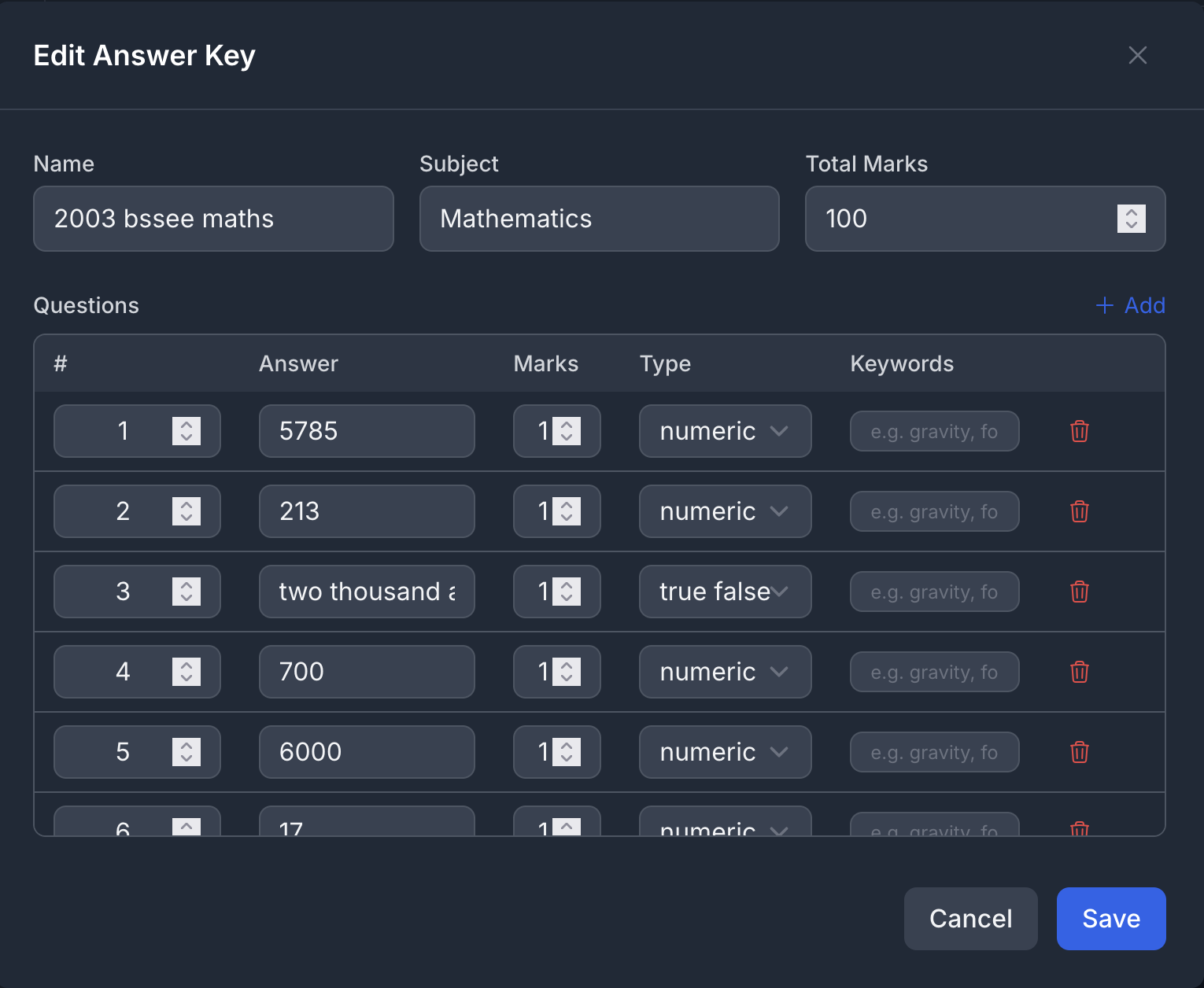
FirstMarker can generate answer keys
FirstMarker Team · April 15, 2026
grading
How to Generate an Answer Key
Step 1 - Select Answer Key Library from the left sidebar menu
This allows us to store the answer key in the database so that we wouldn't have to go through these steps again
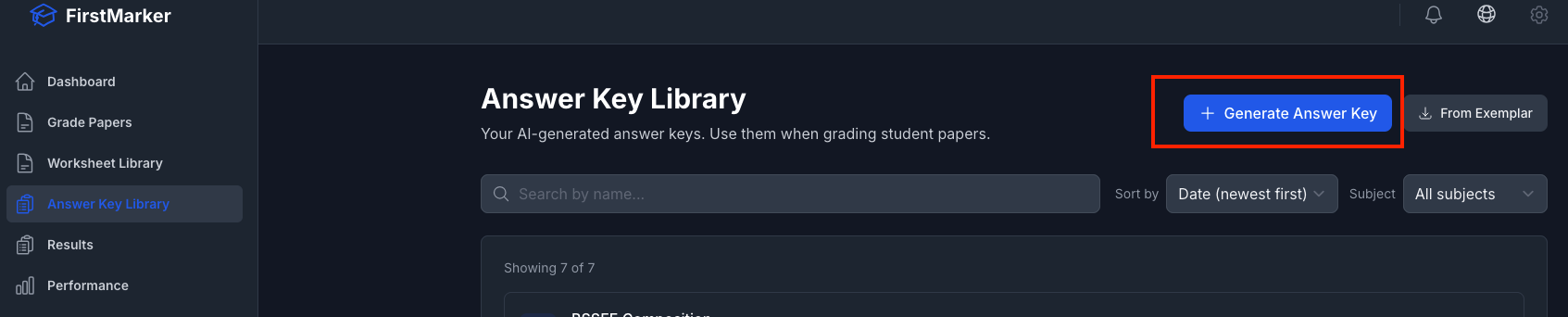
Step 2 - Click "Generate Answer Key" button
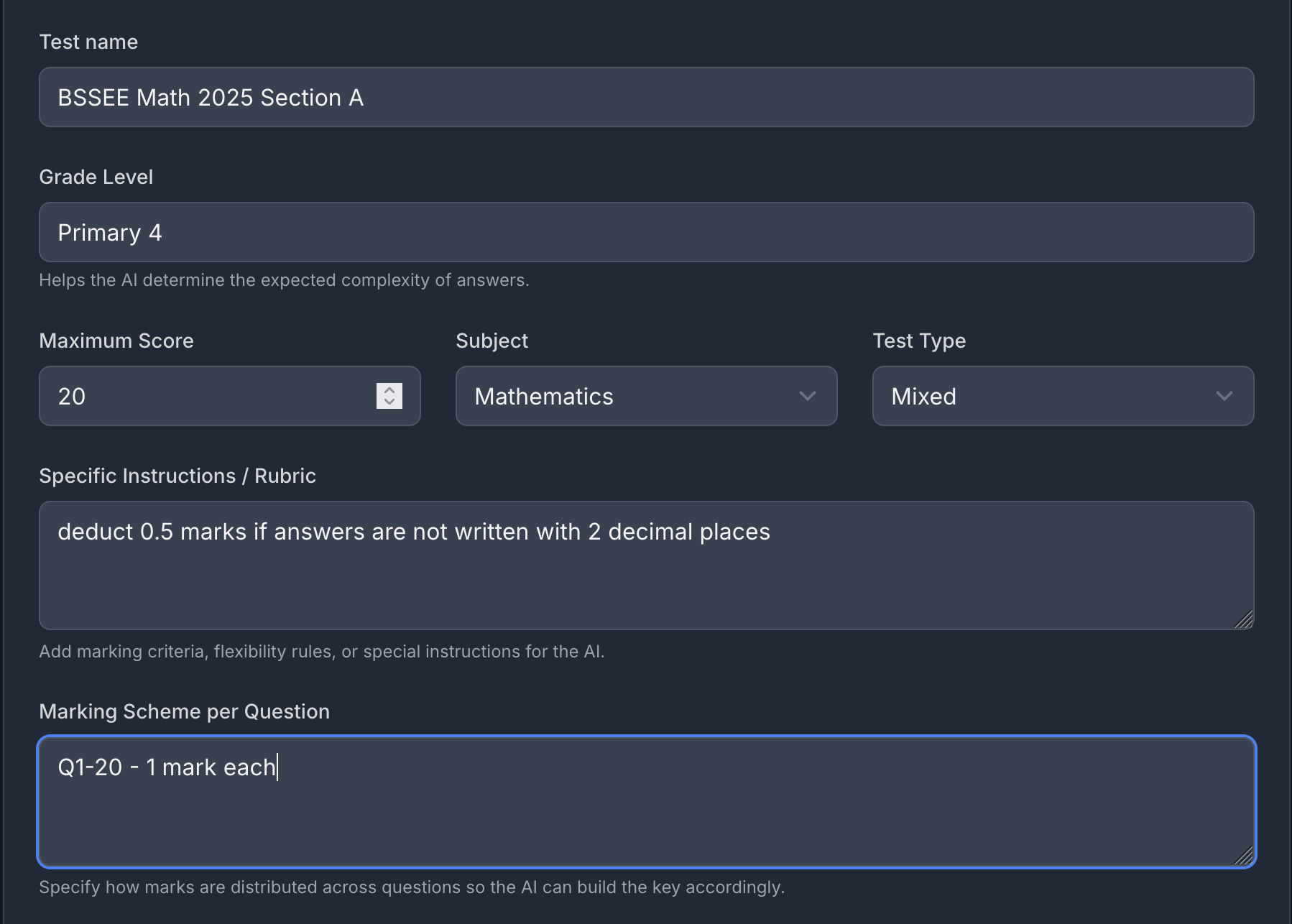
This takes you to a form where you will upload a blank test script and enter details such as test name etc.
Step 3 - Fill out the form details
Step 4 - Upload a blank test script
If you are using a mobile device, you can use the phone's camera but it is recommended that you use a flatbed scanner or just upload a pdf copy of the test script. There are scanning apps that are very fast and very good at scanning documents and exporting as images or PDFs.
Step 5 - Hit the "Generate Answer Key" button
Step 6 - Return to the "Answer Key Library" and select the edit button next to the test that was generated. Look over the answers and the marks awarded for each. Ensure that it is satisfactory before clicking save.